Understanding the Standalone Architecture and Phone Pairing Requirements
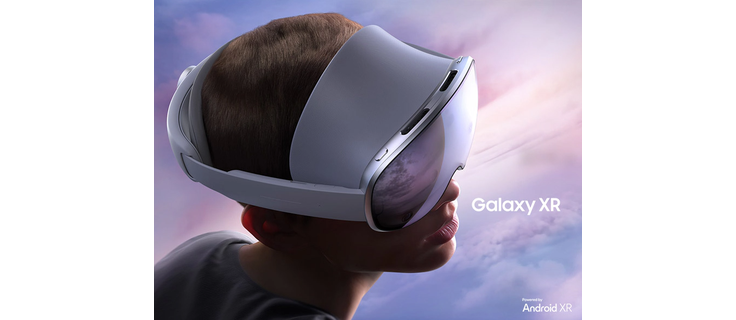
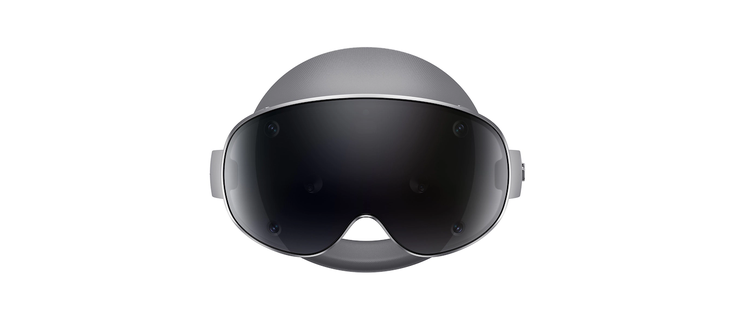
The Samsung Galaxy XR represents a significant shift in mixed reality hardware by operating as a truly standalone device. Unlike earlier generations of VR headsets that relied entirely on a smartphone as a processing unit, the Galaxy XR houses its own high-performance Snapdragon XR2+ Gen 2 processor. This architectural independence means you do not need a phone to operate the headset for basic functions. However, for the optimal user experience, particularly regarding seamless connectivity and simplified configuration, pairing with a compatible Samsung Galaxy phone is highly recommended. This pairing process, often referred to as Galaxy XR Accessories Setup, unlocks features like Call Continuity and the proprietary Easy Setup wizard.
It is crucial to understand that while the headset functions independently, the ecosystem is strictly gated to the Android environment. There is absolutely no support for iOS devices or iPhones. The phone serves as a companion to extend functionality rather than a requirement for operation. For international buyers who may not have immediate access to the headset in their local market, platforms like Big Apple Buddy facilitate purchasing the US version, which is fully compatible with the necessary setup procedures. The included charger supports 100-240V universal voltage, ensuring that international users can power the device without complex voltage converters, needing only a standard plug adapter.
Compatible Devices and The One UI 6.1 Prerequisite
When preparing for Galaxy XR Accessories Setup, the first step is verifying your device compatibility. Samsung has defined a specific list of devices that support the necessary software protocols for seamless integration. The absolute minimum requirement is a Samsung device running One UI 6.1 or later. Without this specific software version, you will miss out on the advanced pairing features and the streamlined setup wizard that significantly reduces configuration time.
Officially Supported Device List
The following device families are confirmed to work with the Galaxy XR for full feature integration:
- Galaxy S24 Series: S24, S24+, S24 Ultra
- Galaxy S25 Series: S25, S25+, S25 Ultra (upon release)
- Galaxy Z Fold Series: Z Fold5 and Z Fold6
- Galaxy Z Flip Series: Z Flip5 and Z Flip6
- Select A Series: Specific high-end models with updated One UI 6.1 support
While older Galaxy devices can connect via standard Bluetooth for basic audio, they will not support the Easy Setup feature. This feature allows your phone to act as a remote control for the headset during the initial boot process, automatically transferring account credentials and Wi-Fi settings. If your phone does not support One UI 6.1, you must rely on the manual on-screen wizard within the headset, which requires more navigation using the eye-tracking system.
AVAILABLE FROM BIG APPLE BUDDY
Samsung Galaxy XR compatible phones and setup guide
We buy it in the U.S. and ship it to your door in 75+ countries.
BUY THIS NOW
The Easy Setup Workflow and Account Configuration
The Easy Setup process is the cornerstone of the Galaxy XR Accessories Setup experience. It is designed to eliminate the friction typically associated with configuring new VR hardware. The workflow begins with ensuring your compatible Galaxy phone is charged and has the necessary permissions enabled. When you power on the headset for the first time, a prompt will appear on the headset display asking you to bring your phone closer. Once the devices detect each other via Bluetooth 5.4, a connection card appears on your phone screen.
Step-by-Step Pairing Guide
Follow these steps to ensure a smooth connection:
- Charge the External Battery: Before starting, ensure the external battery pack is fully charged. The indicator light will turn green when ready.
- Launch the Setup Wizard: Power on the Galaxy XR. The headset will enter setup mode.
- Initiate Proximity: Hold your compatible Galaxy phone near the headset. The phone will detect the headset automatically.
- Confirm Credentials: On your phone, confirm the transfer of your Google and Samsung account credentials to the headset.
- Connect Wi-Fi: The headset will automatically adopt the Wi-Fi settings from your phone, ensuring a stable connection for the initial download.
Once the transfer is complete, the headset will reboot and be ready for use. This process not only saves time but also ensures that your digital purchases and settings are synchronized correctly. For a comprehensive overview of the device's capabilities, you can refer to our full guide on the Samsung Galaxy XR. If you encounter any issues during this phase, such as the phone failing to detect the headset, ensure that Bluetooth is enabled on both devices and that there are no physical obstructions blocking the signal.
Essential vs. Nice-to-Have: Selecting the Right Accessories
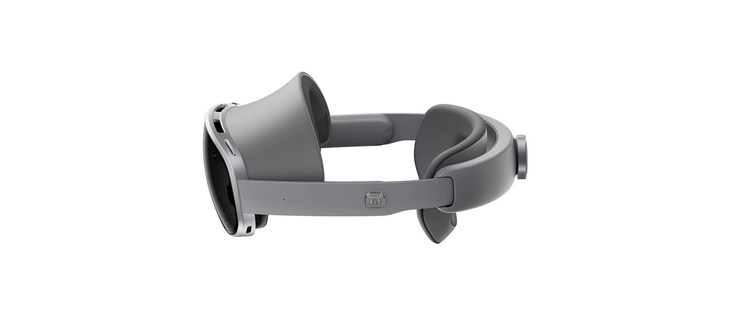
Once your phone is paired, the next critical phase of Galaxy XR Accessories Setup involves selecting the right peripherals. The Galaxy XR ecosystem is modular, meaning you can start with the base package and add components as your needs evolve. The base unit includes the headset, external battery, and standard cables, but it relies on hand and eye tracking as the primary input methods. This is sufficient for productivity tasks, media consumption, and casual mixed reality experiences.
Accessory Comparison Table
| Accessory | Price | Essential for Gaming? | Essential for Productivity? | Notes |
|---|---|---|---|---|
| Wireless Controllers | $249.99 | Yes | No | Required for precise gaming interaction. |
| Travel Case | $249.99 | No | No | Highly recommended for protecting the $1,800 device. |
| Prescription Lens Inserts | $99.99 | No | No | Available via Eyebuydirect or Reloptix. |
| Comfort Straps | Varies | No | No | Studioform offers modifications for extended wear. |
The wireless controllers are the only accessory that significantly alters the core interaction model. They are sold separately and are essential if you plan to engage in first-person shooters, rhythm games, or any application requiring precise hand gestures beyond natural tracking. However, for business applications, virtual offices, or watching 360-degree videos, the built-in hand and eye tracking are robust enough. The external battery is proprietary, so third-party replacements are not currently available. For international users, purchasing accessories from official Samsung partners ensures compatibility and warranty coverage.
Troubleshooting Connectivity and Maintenance for Global Users
Even with perfect hardware and software, users may encounter connectivity hiccups during Galaxy XR Accessories Setup. The most common issue involves Wi-Fi and Bluetooth interference during the initial pairing phase. If your phone cannot find the headset, try turning off other nearby Bluetooth devices or moving to a location with less network congestion. Another frequent issue is the proximity sensor failing to activate the display. This is often caused by dust or smudges on the sensor area. A simple cleaning with the provided microfiber cloth usually resolves this.
For power users interested in sideloading Android apps, it is important to note that the USB-C port is the primary interface for data transfer and charging. Using a high-quality USB-C hub can expand your connectivity options, allowing for external storage or wired audio. International buyers should be aware that while the hardware is universal, app availability may be restricted by the region set in your Google account. If you purchased your device through a service like Big Apple Buddy, ensure your Google account region is set correctly to access the full library of apps. Finally, always use the included 25W Samsung charger. While other chargers may physically fit, they may not provide the stable power delivery required for the Snapdragon processor, potentially leading to performance throttling.